
License activation
Make Believe plugins are licensed through iLok. Here’s how to install your license on your computer or an iLok. It only has to be done once.
At a glance
- iLok.com account
- Required (it’s free)
- Activations
- Two per license
- iLok USB key
- Optional
How licensing works.
- 01
Activate it on iLok.com
Your plugin license from Metric Halo comes with an activation link. Clicking it activates the license in your iLok.com account, but doesn’t install it on your iLok or computer yet.
- 02
Install it
Install the license with the free iLok License Manager app, or from the Activation dialog that appears the first time you open the plugin.
- 03
Skip the dialog
Installed it with iLok License Manager? Then the plugin is licensed and you won’t see the Activation dialog. Otherwise, the steps below walk you through it.
Activate from the plugin.
If the license isn’t installed yet, the plugin opens the activation wizard the first time you run it. Here’s every screen.
- Step 01
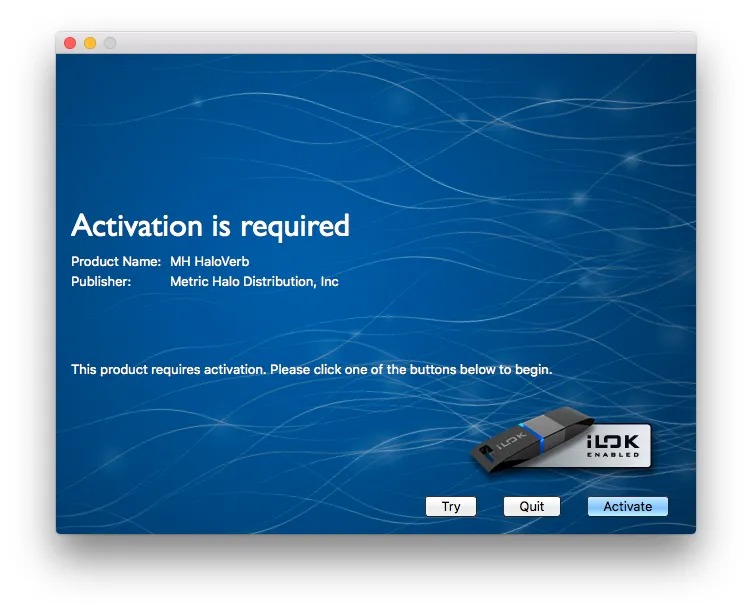
Activation is required
The first time you open the plugin without a license installed, the Activation dialog appears. Click Activate.
- Step 02
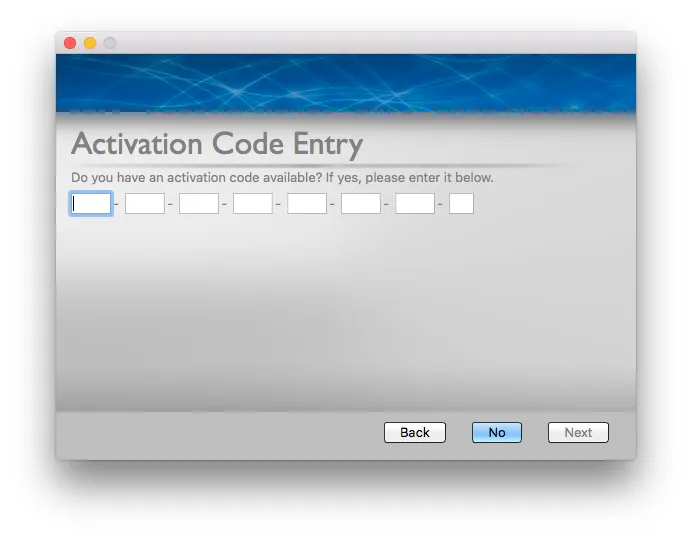
Activation Code Entry
Haven’t activated the license on iLok.com yet? Enter your license code here and click Next. Already activated it on iLok.com? Click No.
- Step 03
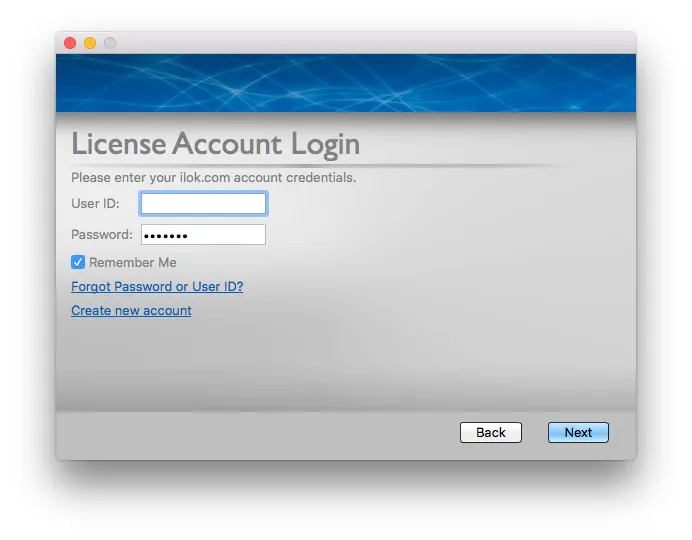
License Account Login
Enter your iLok.com user ID and password (if they aren’t already filled in) and click Next.
- Step 04
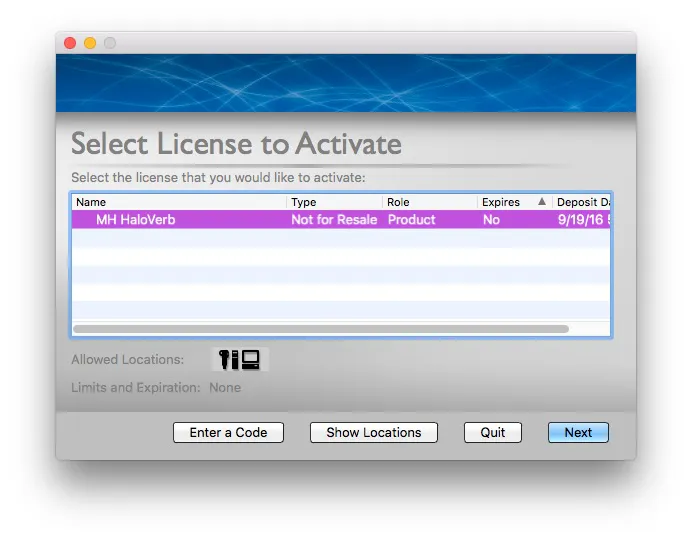
Select License to Activate
The list shows the licenses you’ve activated on iLok.com. Select the plugin’s license and click Next.
- Step 05
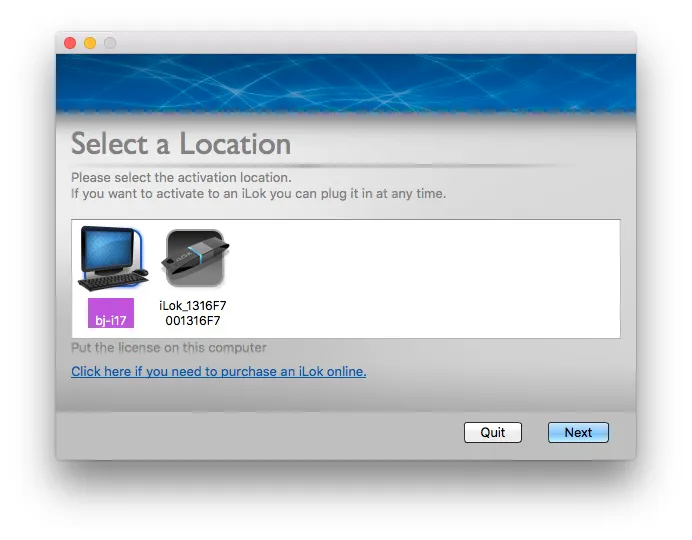
Select a Location
Choose where to install the license. Without an iLok, only your computer is listed; with one or more iLoks plugged in, you can pick one of them. Click Next.
- Step 06
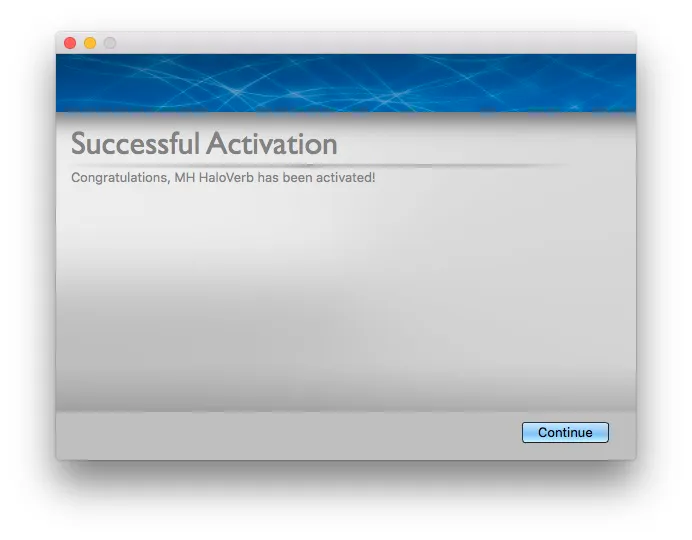
Successful Activation
The license is installed. Click Continue to close the wizard and start using the plugin. This only has to be done once.
Please note that licenses installed on a computer can be lost if the hard drive crashes or if the motherboard of the computer is changed. Please remove the license from your computer and back to your iLok.com account before reformatting or replacing a hard drive or selling a system.
The screenshots show Metric Halo’s HaloVerb; the steps are the same for every Make Believe plugin. Adapted from Metric Halo’s License Activation instructions.